Showing posts with label software. Show all posts
Showing posts with label software. Show all posts
Thursday, January 27, 2011
Zenworks Application Server fixed
Software launched from the Zenworks Application window should work correctly today. A server configuration issue was fixed late yesterday (Wednesday). If you have had problems with any software loading incorrectly of failing to load at all, please try it again today and see if it works.

Wednesday, September 15, 2010
Can't find the program you need on your computer? Here's a solution!
Do you ever log in to your computer and look in the Zenworks Application menu, but can't find a program that you should have? Well, we know one reason this might happen, and have a solution.
When you log in, if you see a Zenworks login window, DO NOT CLICK CANCEL! (Yes, we may have told you to click "cancel" before, but it turns out that this is a bad idea.) Instead, LOG IN, using your OSD username and password. It should either work, or you'll get an error message.
If it works, great! If you get an error message, you can either report the computer to the helpdesk, or you can fix it yourself by doing the following steps:
"Okay," you say, "but at least you can see the elevator doors, so you know when the elevator is actually doing something."
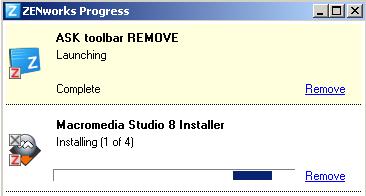
Here's a tip: If you want to see if Zenworks is actually installing the application on your computer, you can right-click on the Z icon in the toolbar and select "Show Progress." This will show you what it's doing.
You can also look very carefully at the application icon itself. While it's installing, it has some little green downward arrows on it, indicating "I'm downloading." When it's done, it has a little red Z on it, indicating, quite unintuitively, that it is installed. But really, that's so small, I don't expect anybody to pay much attention to it.
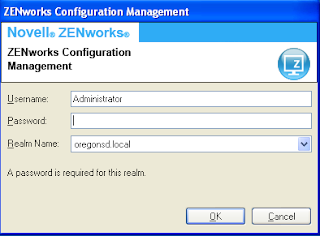 |
| ZENworks login window. Don't click cancel! |

If it works, great! If you get an error message, you can either report the computer to the helpdesk, or you can fix it yourself by doing the following steps:
- Open the E: drive on your computer.
- Delete the file called "register.txt".
- Reboot the computer. It will re-register with the Zenworks server, reboot once on its own, and then you can log in.
- Log in.

"Okay," you say, "but at least you can see the elevator doors, so you know when the elevator is actually doing something."
Here's a tip: If you want to see if Zenworks is actually installing the application on your computer, you can right-click on the Z icon in the toolbar and select "Show Progress." This will show you what it's doing.
 |
Tuesday, March 17, 2009
Clarifications on software requests
For clarification on the software request procedure, and answers to some frequently asked questions, please see
http://sites.google.com/a/oregonsd.net/technology/policies-and-procedures/software-requests (staff login required).
http://sites.google.com/a/oregonsd.net/technology/policies-and-procedures/software-requests (staff login required).
Monday, March 16, 2009
Request your software for 2009-2010
Did you know that industry-wide, 80% of tech incidents are caused by IT making a change? Given that statistic, you might ask why we ever make any changes. The answer, of course, would be to solve a security issue, provide upgrades, or fulfill a software request from staff.
To avoid such problems, we want to streamline our software, and minimize changes. Toward that end, IT has a goal to use a single software image on each computer for each semester. We will begin with this practice in fall 2009. We'll need your help to determine what software is to be installed, so we need you to tell us what software we need. Please submit your requests in an online form at http://bit.ly/request
You can view all the requests submitted so far at http://bit.ly/viewrequests . That way, if somebody else already submitted the same request, you don't have to do it again.
Please note that if you do not request a software application to be installed, it won't be available for the first semester of the 2009-2010 year! You'll have to wait for the semester 2 request window.
To avoid such problems, we want to streamline our software, and minimize changes. Toward that end, IT has a goal to use a single software image on each computer for each semester. We will begin with this practice in fall 2009. We'll need your help to determine what software is to be installed, so we need you to tell us what software we need. Please submit your requests in an online form at http://bit.ly/request
You can view all the requests submitted so far at http://bit.ly/viewrequests . That way, if somebody else already submitted the same request, you don't have to do it again.
Please note that if you do not request a software application to be installed, it won't be available for the first semester of the 2009-2010 year! You'll have to wait for the semester 2 request window.
Subscribe to:
Posts (Atom)