Do you ever log in to your computer and look in the Zenworks Application menu, but can't find a program that you should have? Well, we know one reason this might happen, and have a solution.
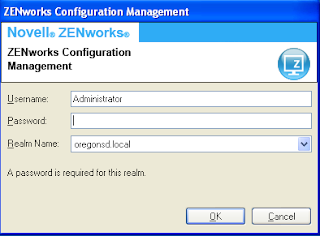 |
| ZENworks login window. Don't click cancel! |
When you log in, if you see a Zenworks login window, DO NOT CLICK CANCEL! (Yes, we may have told you to click "cancel" before, but it turns out that this is a bad idea.) Instead, LOG IN, using your OSD username and password. It should either work, or you'll get an error message.
If it works, great! If you get an error message, you can either report the computer to the
helpdesk, or you can fix it yourself by doing the following steps:
- Open the E: drive on your computer.
- Delete the file called "register.txt".
- Reboot the computer. It will re-register with the Zenworks server, reboot once on its own, and then you can log in.
- Log in.
Another tip- Once you find the application in the Zenworks Application window and double-click on it, you have to wait for it to install on your computer from the server. Unfortunately, it doesn't give you a progress bar (we're working on that), so it looks like it's doing nothing, which of course means you want to double-click on it again. Try to resist the impulse. Just like pressing the elevator button a bunch of times doesn't make the door close faster, double-clicking on the application icon doesn't make it load faster. In fact, it slows it down
more, because then it tries to install it multiple times.
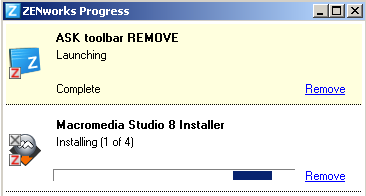
"Okay," you say, "but at least you can see the elevator doors, so you know when the elevator is actually doing something."
Here's a tip: If you want to see if Zenworks is actually installing the application on your computer, you can right-click on the Z icon in the toolbar and select "Show Progress." This will show you what it's doing.
You can also look very carefully at the application icon itself. While it's installing, it has some little green downward arrows on it, indicating "I'm downloading." When it's done, it has a little red Z on it, indicating, quite unintuitively, that it is installed. But really, that's so small, I don't expect anybody to pay much attention to it.


