In response to many teacher requests over the past year, we upgraded the Moodle server to version 2.1. However, the conversion process had some technical limitations that we and our beta-tester teachers did not catch. This means that many teachers are missing some documents in their courses. Fear not, we have your data!
If you are missing items, you need to follow the instructions posted at https://sites.google.com/a/oregonsd.net/technology/documentation/moodle/2-1-upgrade-file-rollover (staff login required)
This involves retrieving your files, then uploading them anew to your Moodle course.
Many thanks to Chris Brown for figuring out a way to resurrect these files and make them accessible in a human-readable manner.
Showing posts with label troubleshooting. Show all posts
Showing posts with label troubleshooting. Show all posts
Tuesday, August 30, 2011

Tuesday, July 5, 2011
Excel and Word file saving locations
We discovered an issue with Word and Excel that is related to the migration to the new SAN. It was resolved at 11:30 AM today.
The issue is caused by Word and Excel having a default Save location which is specified as \\osd-home1\staff\, which is the location mapped to the H: drive for staff. The new location of the H: drive, on the new SAN, is \\osdna1-a\home\staff\.
The result is that if you opened something this morning in Word or Excel, made changes, then saved, Word or Excel saved your changes on the old SAN unless you intentionally saved it to the new H: drive (and why would you?) So when you try to open the revised file, it seems to be unchanged.
Fear not- the changed file is still there. To access the file, open Windows Explorer and type \\osd-home1\staff in the address bar and press Enter. Then browse to the directory in which you saved the file. You can drag the file to your new H: drive (at \\osdna1-a\home\staff) or open the, select Save As..., and navigate to the H: drive.
Word and Excel were fixed at 11:30 AM, and the group policy settings were pushed out at 12:20 PM, so it should work correctly now. If you have problems, please reboot your computer first to see if it is fixed, then try to find the files using the workaround described above.
The issue is caused by Word and Excel having a default Save location which is specified as \\osd-home1\staff\, which is the location mapped to the H: drive for staff. The new location of the H: drive, on the new SAN, is \\osdna1-a\home\staff\.
The result is that if you opened something this morning in Word or Excel, made changes, then saved, Word or Excel saved your changes on the old SAN unless you intentionally saved it to the new H: drive (and why would you?) So when you try to open the revised file, it seems to be unchanged.
Fear not- the changed file is still there. To access the file, open Windows Explorer and type \\osd-home1\staff in the address bar and press Enter. Then browse to the directory in which you saved the file. You can drag the file to your new H: drive (at \\osdna1-a\home\staff) or open the, select Save As..., and navigate to the H: drive.
Word and Excel were fixed at 11:30 AM, and the group policy settings were pushed out at 12:20 PM, so it should work correctly now. If you have problems, please reboot your computer first to see if it is fixed, then try to find the files using the workaround described above.
Thursday, December 16, 2010
Acrobat Reader X not working
Adobe Acrobat Reader X is not working on some computers, or on some user profiles. We don't know the cause, as it appears to be intermittent. It seems to have something to do with the profile redirection settings.
Some of the issues include "out of memory" errors when trying to print and failure to launch the Acrobat Reader web browser plugin in Internet Explorer.
The workaround for getting PDFs to appear from a web browser is to right-click on the link and save the document to your home folder, then double-click on the document to open it.
If you you encounter this problem, please submit a helpdesk ticket at http://helpdesk.oregonsd.net and be sure to include your building, room number, and computer FA #.
Some of the issues include "out of memory" errors when trying to print and failure to launch the Acrobat Reader web browser plugin in Internet Explorer.
The workaround for getting PDFs to appear from a web browser is to right-click on the link and save the document to your home folder, then double-click on the document to open it.
If you you encounter this problem, please submit a helpdesk ticket at http://helpdesk.oregonsd.net and be sure to include your building, room number, and computer FA #.
Wednesday, September 15, 2010
Can't find the program you need on your computer? Here's a solution!
Do you ever log in to your computer and look in the Zenworks Application menu, but can't find a program that you should have? Well, we know one reason this might happen, and have a solution.
When you log in, if you see a Zenworks login window, DO NOT CLICK CANCEL! (Yes, we may have told you to click "cancel" before, but it turns out that this is a bad idea.) Instead, LOG IN, using your OSD username and password. It should either work, or you'll get an error message.
If it works, great! If you get an error message, you can either report the computer to the helpdesk, or you can fix it yourself by doing the following steps:
"Okay," you say, "but at least you can see the elevator doors, so you know when the elevator is actually doing something."
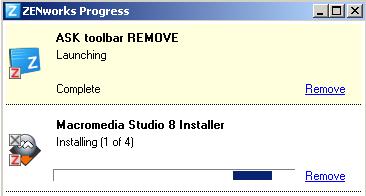
Here's a tip: If you want to see if Zenworks is actually installing the application on your computer, you can right-click on the Z icon in the toolbar and select "Show Progress." This will show you what it's doing.
You can also look very carefully at the application icon itself. While it's installing, it has some little green downward arrows on it, indicating "I'm downloading." When it's done, it has a little red Z on it, indicating, quite unintuitively, that it is installed. But really, that's so small, I don't expect anybody to pay much attention to it.
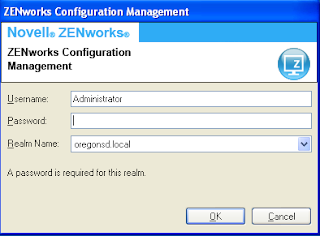 |
| ZENworks login window. Don't click cancel! |

If it works, great! If you get an error message, you can either report the computer to the helpdesk, or you can fix it yourself by doing the following steps:
- Open the E: drive on your computer.
- Delete the file called "register.txt".
- Reboot the computer. It will re-register with the Zenworks server, reboot once on its own, and then you can log in.
- Log in.

"Okay," you say, "but at least you can see the elevator doors, so you know when the elevator is actually doing something."
Here's a tip: If you want to see if Zenworks is actually installing the application on your computer, you can right-click on the Z icon in the toolbar and select "Show Progress." This will show you what it's doing.
 |
Subscribe to:
Posts (Atom)